How to Set Up Two Monitors Without Creating Neck Strain
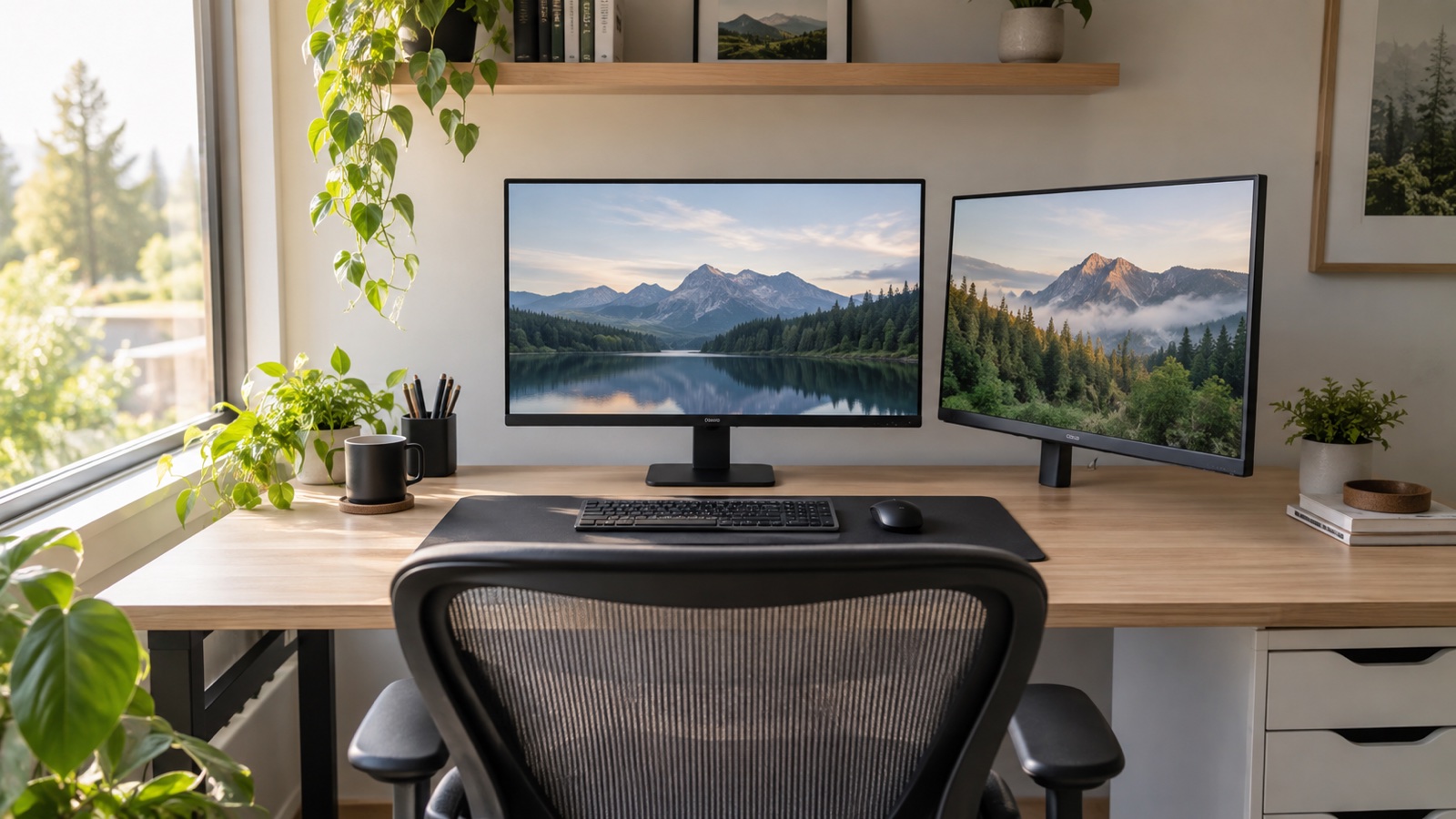
Place the screen used most often directly in front of you. A balanced two-monitor setup follows attention and task flow instead of forcing perfect visual symmetry.
How this article was prepared
This article is based on comparative research, published product documentation, pricing review, and practical workflow analysis. We do not claim hands-on testing unless the article explicitly says so.
Read the editorial policyTwo monitors can reduce window switching, but they can also create a workstation that keeps the neck turned for hours. The common mistake is arranging both displays symmetrically even when one holds most of the important work.
Monitor placement should follow attention. The screen you look at most belongs in front of your body.
Identify the primary screen
For two workdays, note where the active document, timeline, spreadsheet, or browser sits. If one display handles most focused work, make it primary and center it with the keyboard and chair. Place the secondary display to the side at a slight inward angle.
If the workload is genuinely split evenly, place the inner edges close together and center your body on the seam. This arrangement works best when you move whole windows between screens rather than reading continuously across the gap.
Match height by the useful area
Displays with different sizes, stands, and bezels may not align perfectly. Match the area where your eyes spend time rather than forcing the physical tops or bottoms to line up.
Avoid placing both monitors so high that the chin lifts. A comfortable starting point puts the upper part of the active screen near eye level, with most content reached by looking slightly downward. Adjust from there based on posture, glasses, and viewing distance.
Use distance to control head movement
Large screens placed too close require more turning and eye movement. Move the displays back until the full working area is easy to scan without leaning away. Text should remain readable at the operating system's normal scaling.
Our budget monitor guide covers resolution, scaling, and desk-depth tradeoffs before a second display is added.
Angle the secondary display
Rotate the side monitor so its surface faces you rather than continuing in a flat line across the desk. The angle reduces changes in viewing distance and makes the far edge easier to see.
Put low-attention tools on the secondary screen: chat, reference material, file browsers, previews, or a call gallery. Keep the task requiring precise reading and input on the centered screen.
Place the keyboard with the active task
The keyboard should align with the screen receiving most of the typing, not with the geometric center of the furniture. If your body faces one display while the keyboard sits between two, the shoulders and neck remain twisted even though the monitors look balanced.
When the primary task changes for a long block, rotate the chair and keyboard together. Do not keep the hands centered while the head stays turned.
Control glare across both screens
Two displays create twice the reflective surface. Check them during the brightest part of the day and at night. Angle changes that remove glare from one screen can introduce it on the other.
Match brightness by eye using the same neutral document on both displays. Perfect color matching is unnecessary for ordinary office work, but a dramatically brighter secondary screen can be distracting.
Consider whether the second screen should be vertical
A vertical monitor can fit documents, code, or communication feeds while using less width. It is less suitable for wide spreadsheets, video timelines, or anything that needs frequent movement across the full screen.
Test the idea by narrowing a window on the existing display before buying a rotating stand or arm. If the narrow layout feels constrained, physical rotation will not change the task.
The practical verdict
Center the most-used monitor, angle the secondary one toward you, and align the keyboard with the primary task. Treat symmetry as optional. A two-monitor setup succeeds when it reduces window friction without asking the neck to hold a sideways position all day.