Desk Accessories That Actually Make Editing Less Annoying
The best editing accessories remove repeated friction: awkward shortcuts, missing ports, cable clutter, and uncomfortable monitoring. Start with the bottleneck you feel every session.
How this article was prepared
This article is based on comparative research, published product documentation, pricing review, and practical workflow analysis. We do not claim hands-on testing unless the article explicitly says so.
Read the editorial policyEditing desks accumulate objects quickly. Control surfaces, card readers, stands, speakers, and cable organizers all promise a smoother workflow. The useful accessories are the ones that remove a repeated interruption rather than simply making the desk look more technical.
Start with the interruption log
For a week, note what breaks concentration. Maybe the card reader is always missing, the laptop runs out of ports, or the headphones become uncomfortable after an hour. Buy for the interruption that happens repeatedly.
A card reader with a permanent home
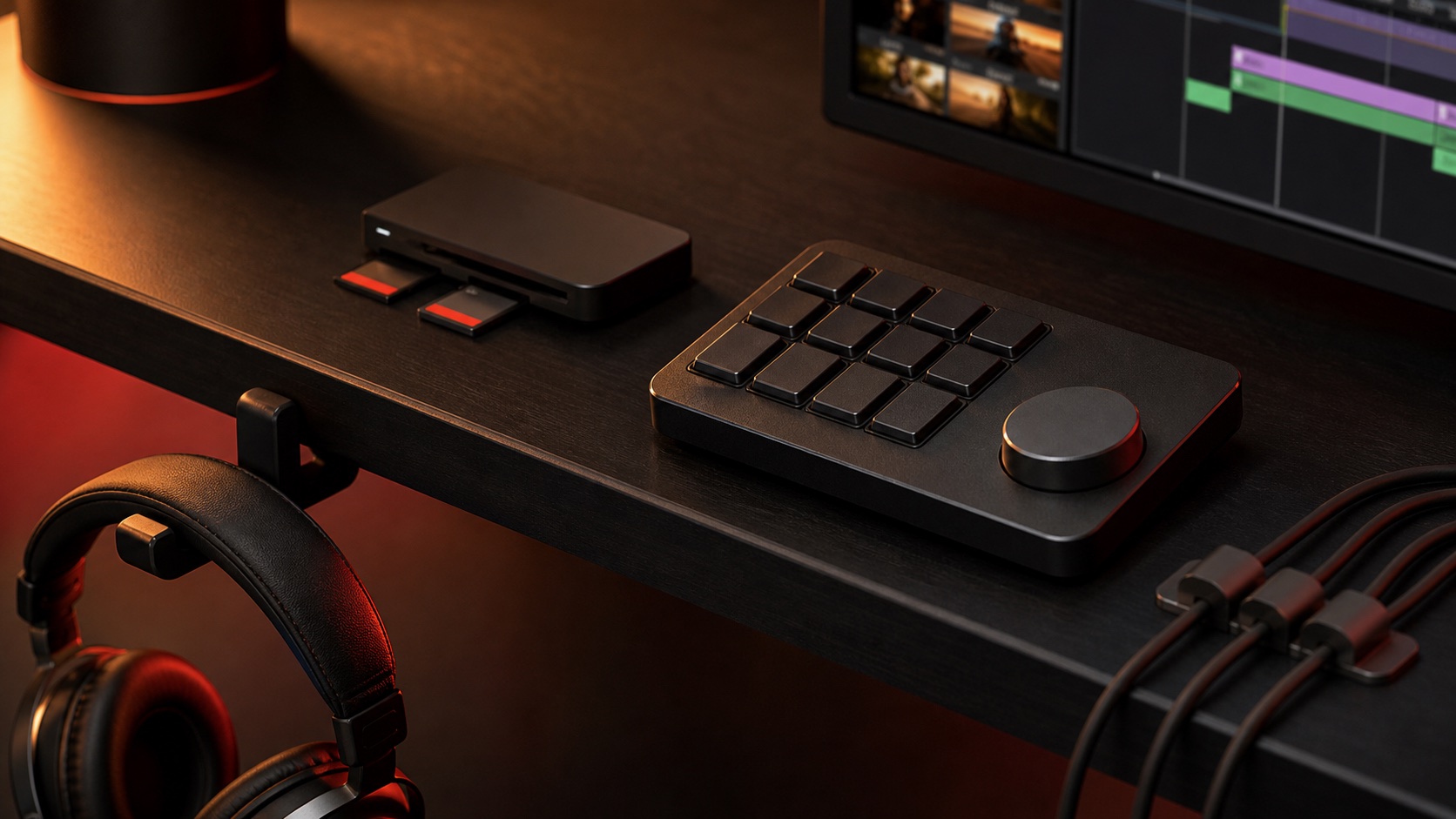
If you import footage often, keep the reader connected or place it in a dedicated tray. A fast reader matters, but availability matters more. The workflow should not begin with searching through a camera bag.
A small shortcut controller
A programmable keypad or dial can help when the same commands appear hundreds of times in a project. It is most useful after keyboard shortcuts are already familiar. Otherwise it becomes another device to configure and remember.
Start with five actions:
- Play and pause
- Split or blade
- Undo
- Timeline zoom
- One frequently used workspace command
Add more only when the first set becomes automatic.
Comfortable monitoring
Headphones should be easy to wear for a full session and simple to connect. Expensive studio models are not automatically better for ordinary dialogue edits. Comfort, replaceable pads, and a dependable cable can matter more than small differences in sound.
Cable control that supports change
Avoid fastening every cable so tightly that swapping a drive becomes a project. Use clips or a shallow tray to create clear paths while keeping the frequently changed connections accessible.
A docking station or USB-C hub may remove more friction than several small adapters, but only if the desk uses the same peripherals most days.
Rank upgrades by minutes saved
Estimate how often the interruption happens and how long it lasts. A card reader that saves three minutes on five imports each week is more valuable than a control surface used once a month. This simple calculation prevents an editing desk from becoming a collection of attractive but low-impact devices.
Use three tiers:
- Tier one: remove a daily interruption. Fix unreliable storage connections, missing ports, uncomfortable headphones, or a keyboard and mouse that cause repeated strain.
- Tier two: reduce repeated actions. Add a shortcut pad, better input device, or monitor arrangement after the software shortcuts and workspace layout are already understood.
- Tier three: improve presentation. Matching stands, decorative lighting, and visual organization come last unless clients regularly see the workspace.
An accessory should either save time, reduce discomfort, or prevent an error. If it does none of those, it is decoration.
Storage and connection upgrades
Video editing puts unusual pressure on ports and drives. Before buying a dock, list which devices must operate simultaneously and check the bandwidth and power each one needs. A fast drive connected through a slow shared hub can perform like a cheap drive, while bus-powered devices may disconnect if the hub cannot supply stable power.
Keep the active editing drive on the most direct dependable connection available. Put lower-demand devices such as a keyboard receiver, control pad, or printer on the hub. If a drive disconnects during exports or large transfers, solve the cable and power path before replacing the storage.
A dock makes sense when the laptop returns to the same desk and connects to the same monitor, drives, network, and audio devices every day. A smaller USB-C hub is more appropriate when portability matters and only two or three connections are needed.
Input devices before control surfaces
A comfortable keyboard and pointing device affect nearly every action in an editing session. A specialized controller affects only the commands mapped to it. If the basic input devices are uncomfortable or unreliable, solve those first.
When evaluating a control surface, map the exact commands before ordering it. If the list contains only functions you already perform comfortably with one keystroke, the device may add more hand movement rather than remove it. Controllers earn their space when they combine repeated multi-step actions or provide useful continuous control for timeline, audio, or color work.
Audio accessories that solve real problems
Choose monitoring around the room and work type. Closed-back headphones can reduce outside distraction and prevent sound leaking into a nearby microphone. Small speakers are useful for checking ordinary playback, but they need suitable placement and a room where volume will not disturb others.
Do not assume one expensive listening device produces a final mix that translates everywhere. Check important work on more than one familiar output, including ordinary earbuds or laptop speakers. The accessory is helpful when it reveals problems consistently, not when it simply looks like studio equipment.
A second display only when the timeline needs it
An extra monitor can separate the preview, timeline, and file browser, but it also consumes desk depth and attention. Before buying one, try better workspace layouts on the current screen. Our monitor upgrade guide explains the desk-fit tradeoffs.
A practical budget ladder
With a limited budget, improve the desk in this order:
- Replace the unreliable cable, adapter, or storage connection that can interrupt work.
- Fix the keyboard, mouse, chair, or headphone discomfort that appears every session.
- Give card readers, drives, and frequently changed cables permanent reachable locations.
- Add a dock or hub only after the connection map is clear.
- Add a shortcut controller or second display after you can name the repeated workflow it improves.
After each purchase, use the setup for a week before adding the next item. That pause makes it easier to tell whether the change helped and keeps several new devices from creating new problems at once.
Reset the desk at the end of a project
Archive or disconnect project-specific drives, return portable readers to their pouch, clear temporary notes, and review which accessories were actually used. A ten-minute reset keeps the next edit from starting in the clutter left by the previous one.
What to skip
Skip decorative control surfaces with no clear command map, giant desk mats that interfere with monitor arms, and organizers sized for accessories you do not own. An editing desk works best when the tools are visible, reachable, and few enough to reset quickly.